The following are some of the dialogs FS Panel Studio will display when it discovers problems. An example message box is shown below:
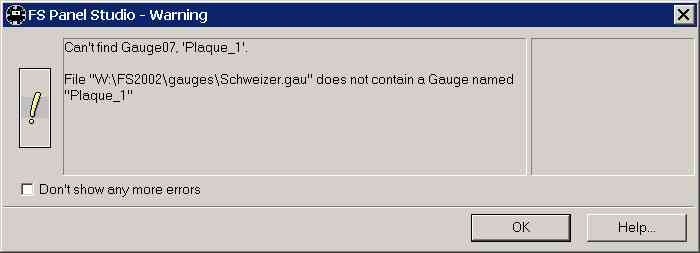
Note: The Warning dialog has the following option:
| • | Don't show these kinds of errors again |
If checked, this box will disable further display of errors. FS Panel Studio will still work properly but will not warn you of errors in the future.
| • | The config file is aliased to another file |
You are attempting to open a panel.cfg which is aliased to another panel. The panel.cfg file in effect is telling you to open a different aircraft's panel.cfg file for the panel data. This is used by the Flight Simulator when two or more aircraft share an identical panel. Instead of copying all of the bitmaps and data into each aircraft's Panel directory, there is only one copy and a pointer to the real location for the other aircraft.
| • | Gauge does not have a static Bitmap Resource |
The Gauge file exists, but it doesn't internally specify a static bitmap resource. The static bitmap is the bitmap displayed on the face of the gauge when it's first displayed by the simulator. This is only a warning -- a gauge designer may choose to draw the gauge totally dynamically, using moving elements such as needles, or the gauge may only exist to supply a sound effect. Some Gauges may only consist of drawn text, and have no background bitmap.
FS Panel Studio cannot display the bitmap, but will display the Gauge as a magenta outline.
| • | Gauge file does not exist |
The physical Gauge file specified in the panel.cfg file can not be found in the file system. The warning dialog will display the full path to the Gauge file, to allow you the verify the file location. It may be that the Gauge exists in the gauge directory of CFS instead of FS2000, for example. The gauge directory depends on the FS Panel Studio mode. Microsoft requires gauges to exist somewhere in or below the Gauge directory where the simulator was installed.
FS Panel Studio cannot display the bitmap, but will display the Gauge as a magenta outline.
| • | Gauge file does not contain a Gauge |
A Gauge file may contain many individual gauges (CFS and later). You will see the above dialog if the physical Gauge file exists, but the specified Gauge does not.
FS Panel Studio cannot display the bitmap, but will display the Gauge as a magenta outline.
| • | Invalid Panel.cfg file |
FS Panel Studio performs checks on the Panel.cfg file which it's opening. If the file is very large or contains non-ascii characters FS Panel Studio will warn you that the file does not appear to be valid. If the problem is non-ascii characters, you can try to continue ( you may have non English characters in the file, for example ).
| • | Gauge may not be visible |
If a gauge has a large negative X or Y value, it may not be visible on screen. FS Panel Studio will warn you of this. Some gauges ( eg sound only gauges) might be deliberately placed off screen, however you'll be warned if they are.
| • | Gauge has a negative width |
Gauges can not have negative widths or heights. FS Panel Studio will warn you and set the negative value to a default 50MM.
| • | Gauge has a very large Width or Height |
A very large width or height is normally a syntax or programming error in the panel.cfg file. Note the Window number and Gauge number and name to help you track down the offending Gauge.
| • | Window's Size_MM out of range |
Microsoft has specified the maximum size for a panel as 8192MM X 6144MM. If you attempt to open a Panel with values outside this range, you will receive this error, however FS Panel Studio will continue to load the file, and in most cases will be able to edit it.
| • | Expecting 4 values for Element "ImageSizes" but found 2 |
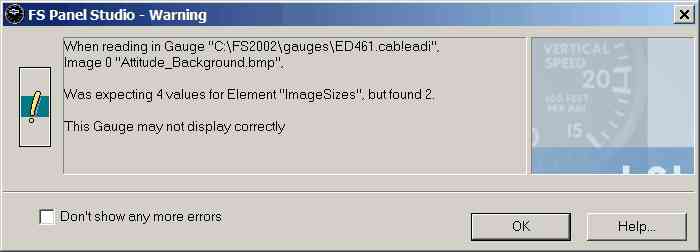
When reading in XML Gauges, FS Panel Studio found an incorrect "ImageSizes" Element specification. Gauges are made up of one or more Images, which are defined in XML DTD by Microsoft as:
<!ATTLIST Image Name CDATA #REQUIRED
ImageSizes CDATA #IMPLIED
DegreesPointsTo CDATA '0'
Bright (Yes | No ) 'No'
PointsTo (East | South | West | North ) 'East'
UseTransparency (Yes | No ) 'Yes'
Luminous (Yes | No ) 'No'
Alpha (Yes | No ) 'No'
NoBilinear (Yes | No ) 'No' >
An example of a simple XML Image Element (from the Beech_Baron Flight Director switch):
<Image Name="FD_Up.bmp" ImageSizes="18,18,28,28"/>
This specifies four integer values for ImageSizes, which correspond to the "FD_UP.bmp" bitmap file Width and Height for the low and high resolution versions (the low res version is found in the CAB file 640 subfolder, the high res version in the 1024 subfolder). FS Panel Studio will report a Warning message if all four values are not read.
FS Panel Studio will also check the actual bitmap sizes and compare these to the stated values in ImageSizes. If they do not match, an error message is displayed.
FS2002/4 may or may not display Gauges with these errors correctly.
| • | Bitmap file Width or Height does not match XML file |
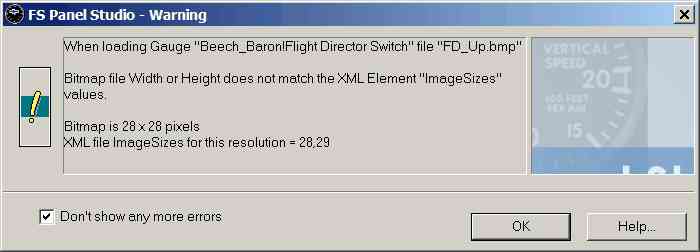
When reading in XML Gauges, FS Panel Studio found an incorrect "ImageSizes" Element specification. Gauges are made up of one or more Images, which are defined in XML DTD by Microsoft as:
<!ATTLIST Image Name CDATA #REQUIRED
ImageSizes CDATA #IMPLIED
DegreesPointsTo CDATA '0'
Bright (Yes | No ) 'No'
PointsTo (East | South | West | North ) 'East'
UseTransparency (Yes | No ) 'Yes'
Luminous (Yes | No ) 'No'
Alpha (Yes | No ) 'No'
NoBilinear (Yes | No ) 'No' >
An example of a simple XML Image Element (from the Beech_Baron Flight Director switch):
<Image Name="FD_Up.bmp" ImageSizes="18,18,28,28"/>
This specifies four integer values for ImageSizes, which correspond to the "FD_UP.bmp" bitmap file Width and Height for the low and high resolution versions (the low res version is found in the CAB file 640 subfolder, the high res version in the 1024 subfolder). FS Panel Studio will report a Warning message if all four values are not read.
FS Panel Studio will also check the actual bitmap sizes and compare these to the stated values in ImageSizes. If they do not match, an error message is displayed.
FS2002/4 may or may not display Gauges with these errors correctly.